
One person, eight styles
Mara is an example. Yours starts from your photo, or from a mascot you describe. Pick the style that feels like you.
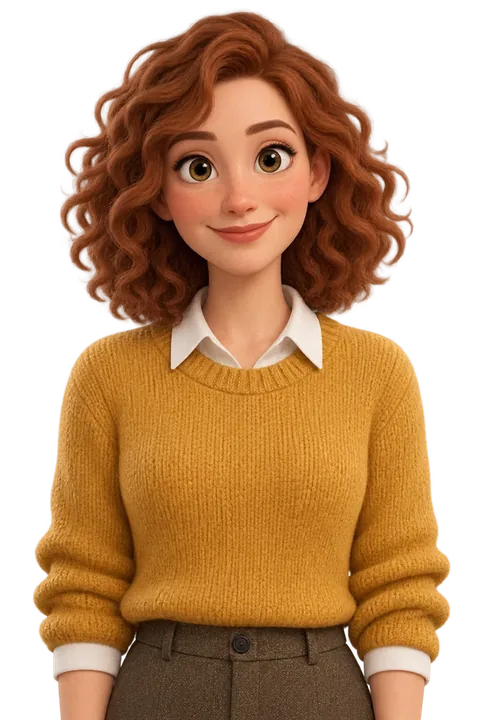
3DLike an animated film

FlatClean vector shapes

AnimeManga lines, big eyes
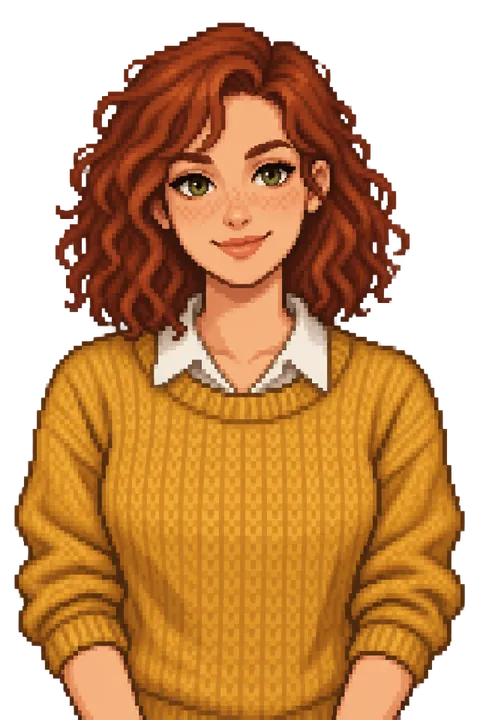
PixelA 16-bit game sprite
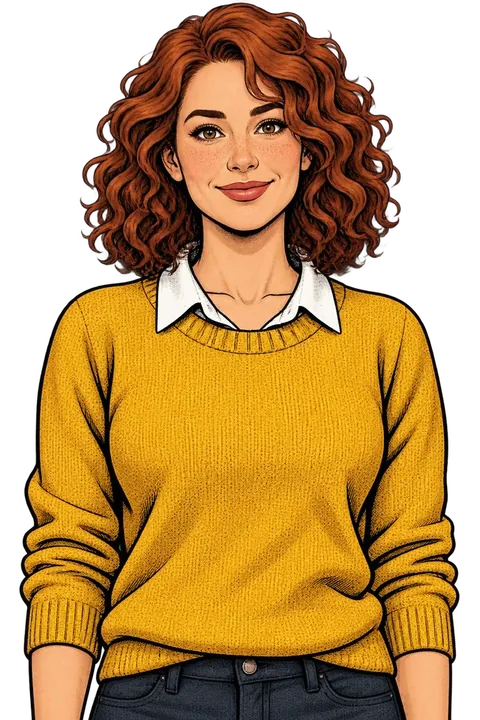
ComicInk and halftone
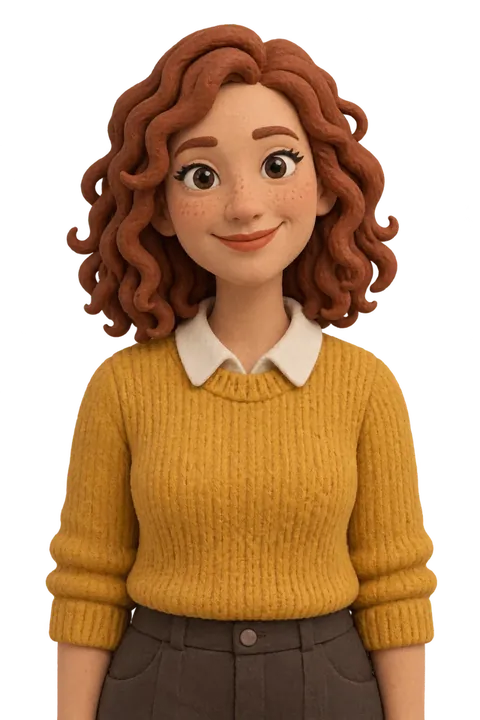
ClayStop-motion plasticine
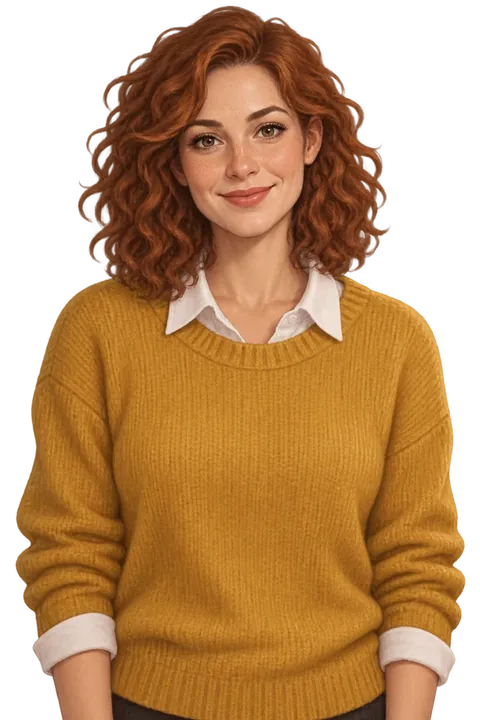
PaintedSemi-realistic brushwork

StickerDie-cut, with a white outline
No photos? Describe one.
Choose Describe one and write who it is. A mascot for your shop, a made-up host for your tips, or a person who isn’t you. The help gives these examples:
- “A friendly fox in a green hoodie and round glasses”
- “A wise owl professor with a bow tie”
- “A cheerful robot holding a coffee”
- “A woman in her 40s with a grey bob and a denim jacket”
Then pick a style and make 3 looks, the same as with photos.
Any pose, on any slide
24 ready poses, each turned toward your words. Or describe your own. A new pose takes about 20 seconds.
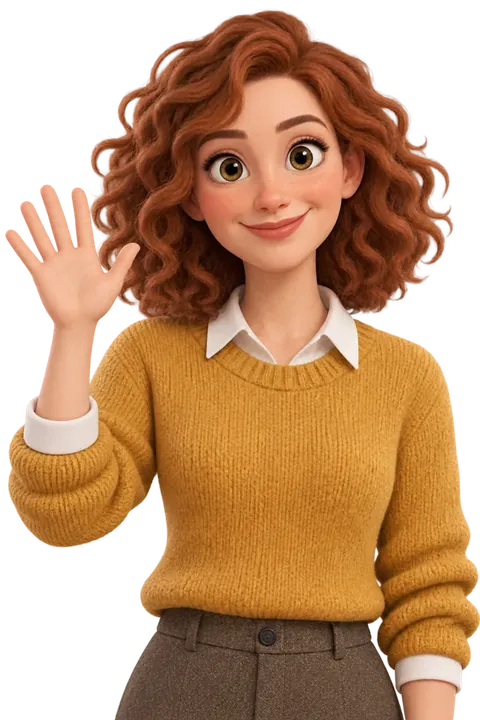
Wave hello
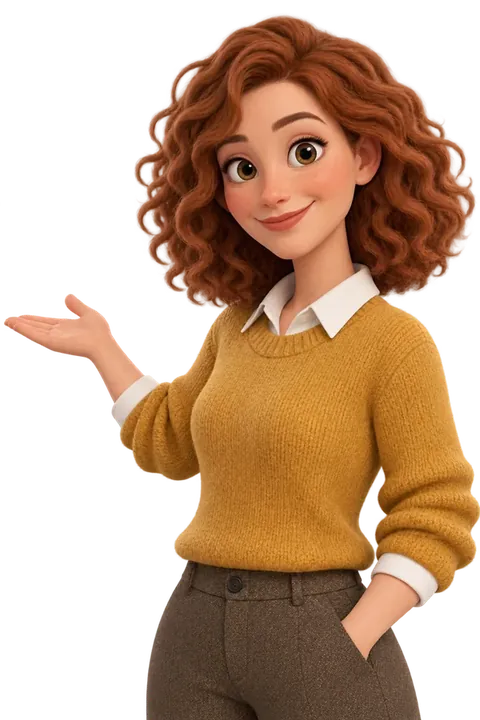
Point to the words

Present

Point down
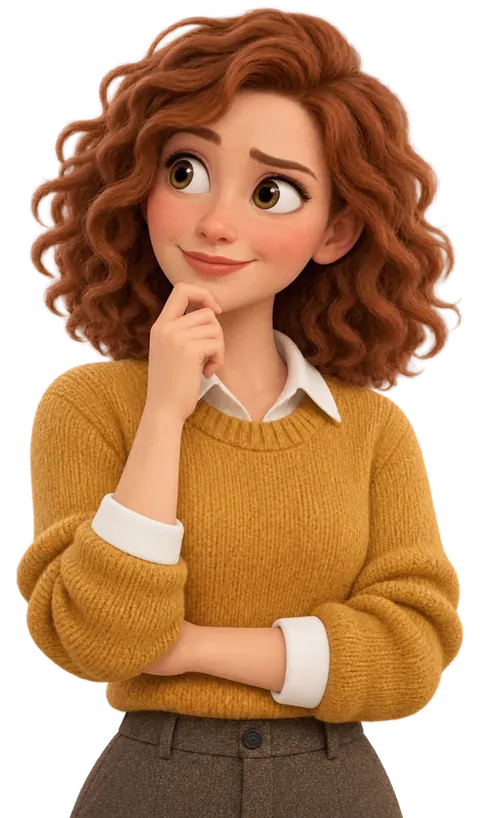
Thinking
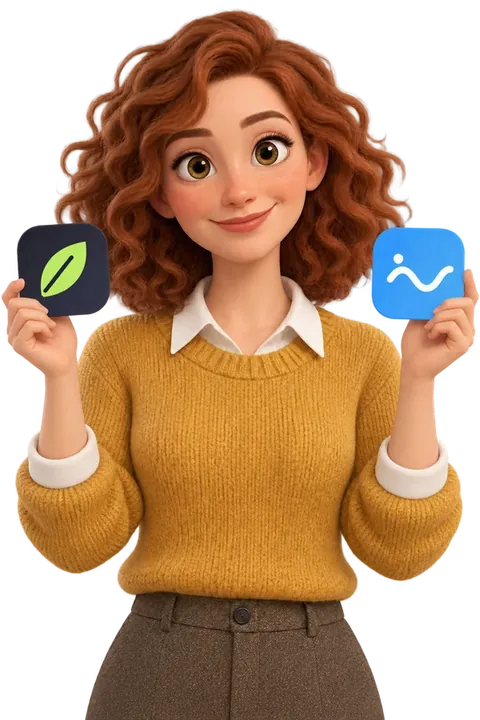
Hold up two things
“Holding a coffee, laughing”
“Sitting on a stack of books”
Or in your own words
And 18 more
Choose a pose, or describe it
Pick one of 24 poses or describe your own, such as “jumping with joy, arms up”. Then set the Expression, the Framing and, for poses that allow it, Turned to: the side where your words go.
Poses that can hold something take a description (“a coffee mug”) or a picture, like your logo or a product box. Hold up two things has a picture for each hand.
Click Make pose. Every pose then has Another take, Mirror (free) and Download.
How to set each pose
| Setting | Choices |
|---|---|
| Expression | Smile, Laugh, Confident, Serious, Surprised, Curious, Wink, Worried |
| Framing | Head and shoulders, Waist up, Full body |
| Turned to | Left, Front, Right (for poses that point or present) |
| Holding | A description, like “a coffee mug”, or a picture, like your logo (for poses that can hold something) |
On your covers and your last slides
In the editor, Layouts › Character has seven layouts made for a character. Pick one and your character goes in whole, in the best pose for that spot.
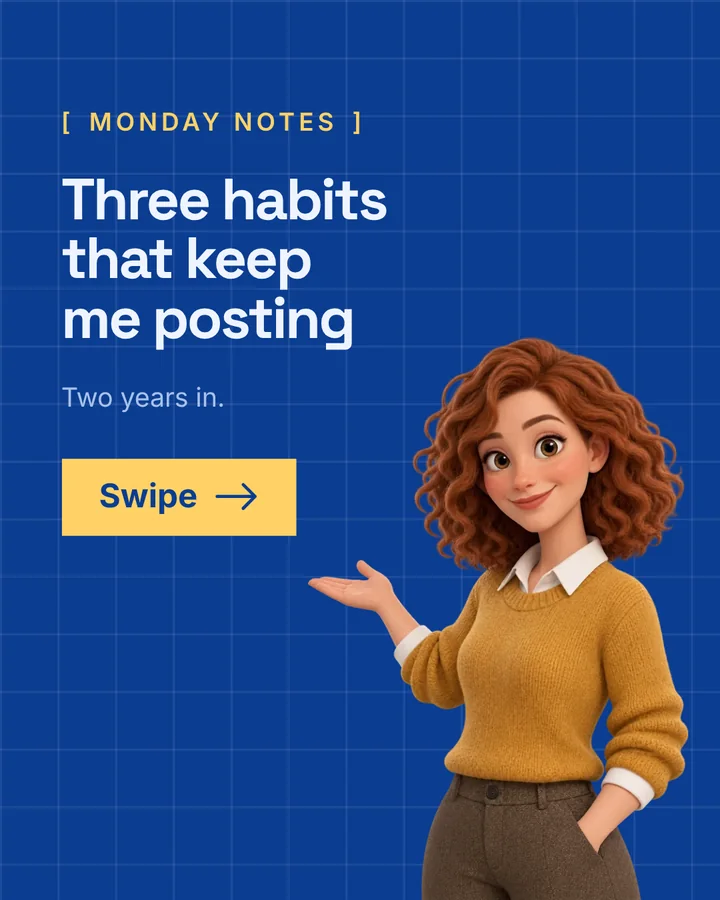
Character cover 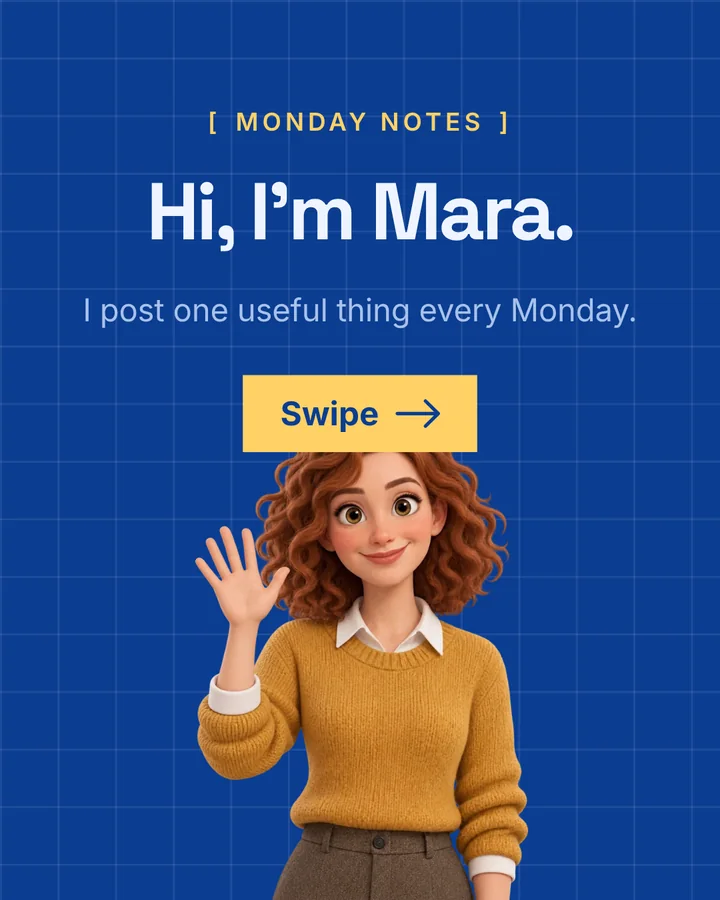
Character cover, centred 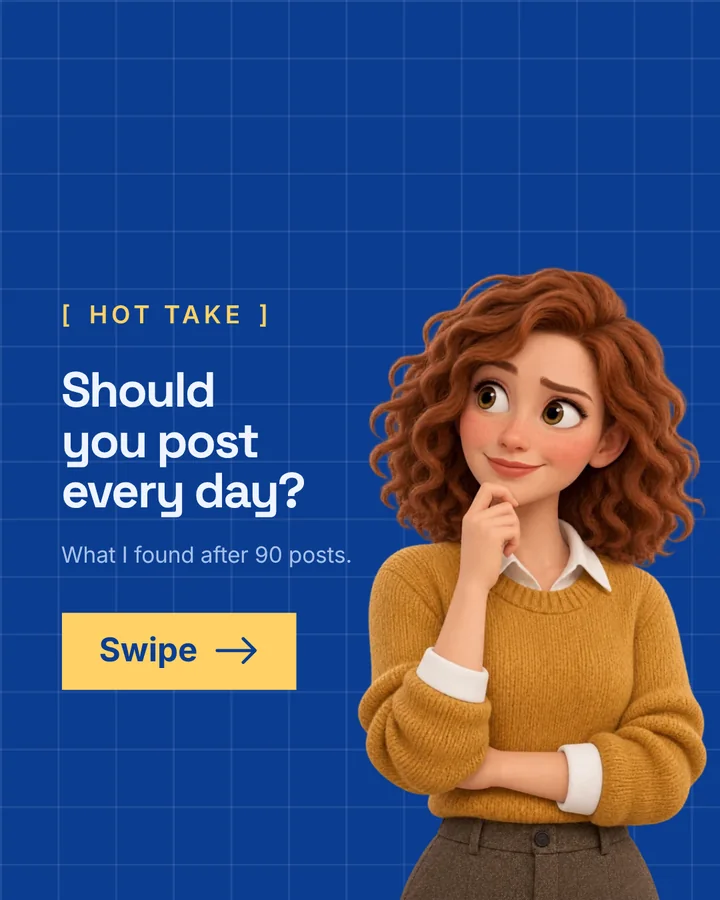
Character beside the headline 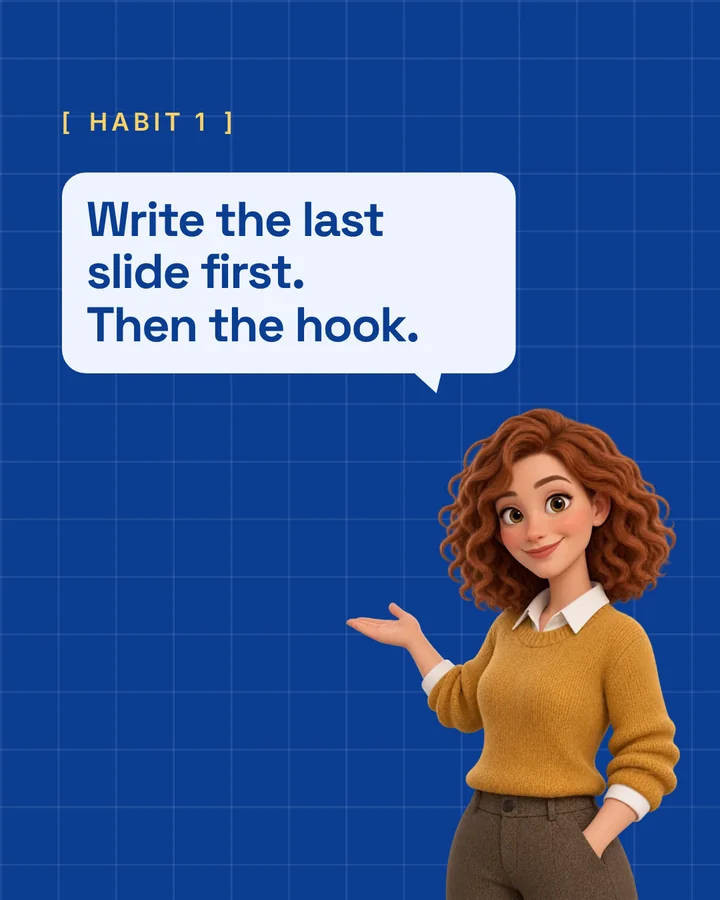
Speech bubble 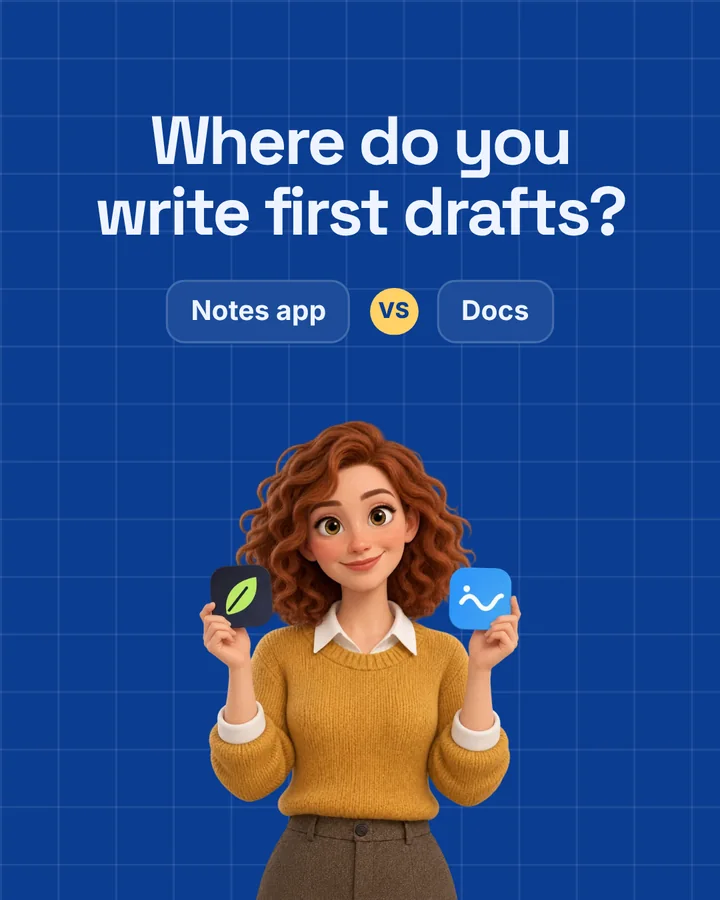
This or that 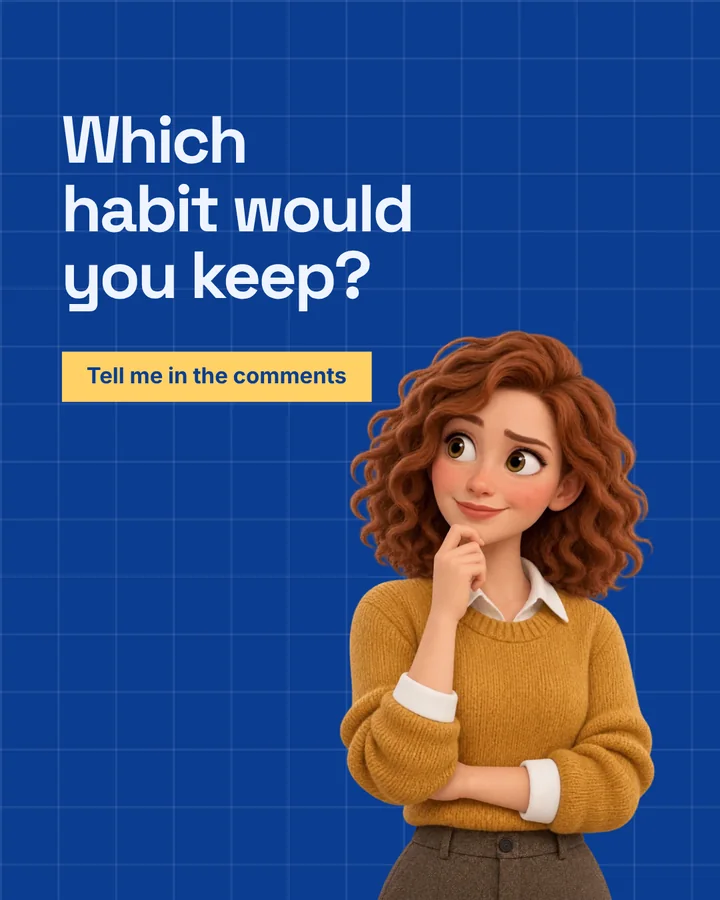
Question for the comments 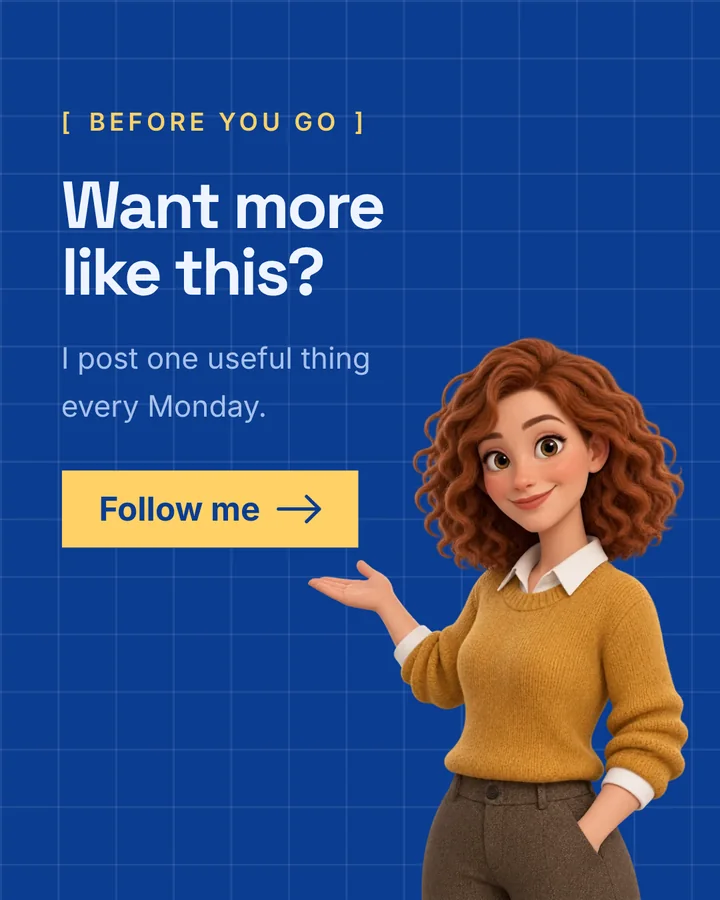
Follow me
Cut out, so it sits on any theme

Lavender Haze 
Dark Green Bold 
Cream & Orange Clean 
Black & Orange Pro 
Coral Studio 
Aurora Mesh
The same cover in six of the themes. Your character keeps its look; the slide takes the theme’s colours and fonts.
The right pose for each slide
The seven character layouts work like any other slide layout, swapped in one click. The slides in between keep their own layouts.
On a character slide, Pictures › Character opens first. It shows your poses, marks the one that’s Best here, and offers New pose for this slide with the direction already set. A pose facing the wrong way is mirrored for you.
Every new carousel can start with you
In Brand kits › Character, choose the character the kit uses and turn on “Start new carousels with Sam on the cover and the last slide”.
New AI carousels then open with your character on the cover and a Follow me or Question for the comments last slide, each in the best pose. LinkedIn covers use the Character cover; Instagram and TikTok use the centred one.
Your first character is linked to your active brand kit when you keep it, if the kit has none yet. A message tells you, with Undo.
From a selfie to a character in three steps
Open Characters in the left sidebar, under Ghostwriters, or choose New › Your character. Before you have one, the page shows a made-up sample called Mara in all eight styles.
- 01
Say who it is
Click Create your character and choose Me, from photos or Describe one. For you, add 1 to 3 photos: face the camera, good light, no sunglasses. You tick a box to confirm they’re photos of you and that you’re 18 or older.
- 02
Pick a style
Eight cards show Mara in each style: 3D, Flat, Anime, Pixel, Comic, Clay, Painted and Sticker. Under Outfit and details you can add something like “A navy blazer over a white T-shirt; keep my glasses”. Then click Make 3 looks.
- 03
Keep the one that’s you
You get three looks: “Pick the one that’s you”. Not quite right? 3 more gives you three new ones. Give it a Name and click Keep this one. Four starter poses follow: pointing to the words, waving, thinking and pointing down.
What a character costs to make
Characters are part of Pro and Team. Every look and every pose is one AI picture from your monthly allowance.
What each step uses
| You make | AI pictures |
|---|---|
| Make 3 looks | 3 |
| 3 more looks | 3 |
| The 4 starter poses | 4 |
| A new pose | 1 |
| Another take | 1 |
| Mirror or Download | Free |
A first character usually costs 7 AI pictures: 3 looks and 4 starter poses. With fewer AI pictures left, fewer starter poses are made.
Characters on each plan
| Plan | Characters | AI pictures |
|---|---|---|
| Pro For one person | Up to 3 | 100 a month |
| Team | Up to 10 | 400 a month |
At your limit you’ll see “Your plan keeps 3 characters” (or 10). Characters need you to be signed in.
Your photos stay with you
For a better likeness
Use 1 to 3 clear photos, facing the camera, in good light, without sunglasses or heavy filters. More than one photo helps.
Not quite you?
Click 3 more, add notes about hair, glasses or outfit under Outfit and details, or try a different style.
Delete it any time
Delete on a character removes its look, poses and photos. Carousels that already use them keep their pictures.


