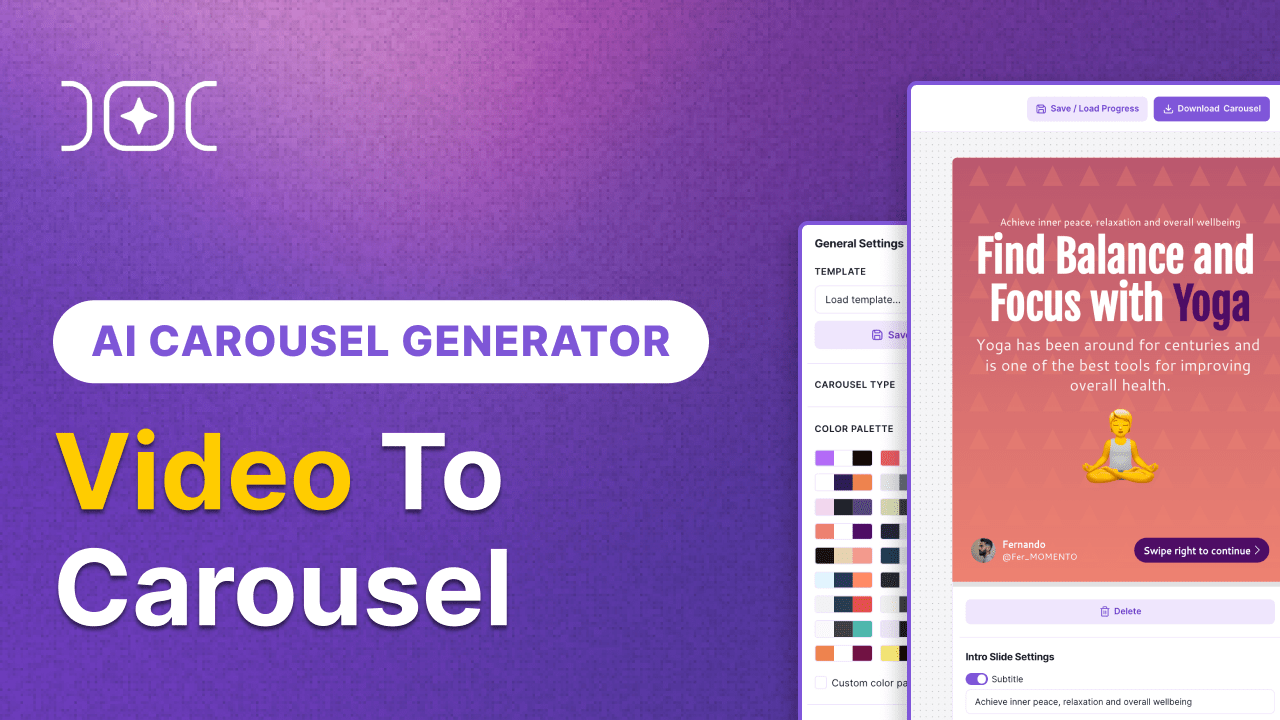
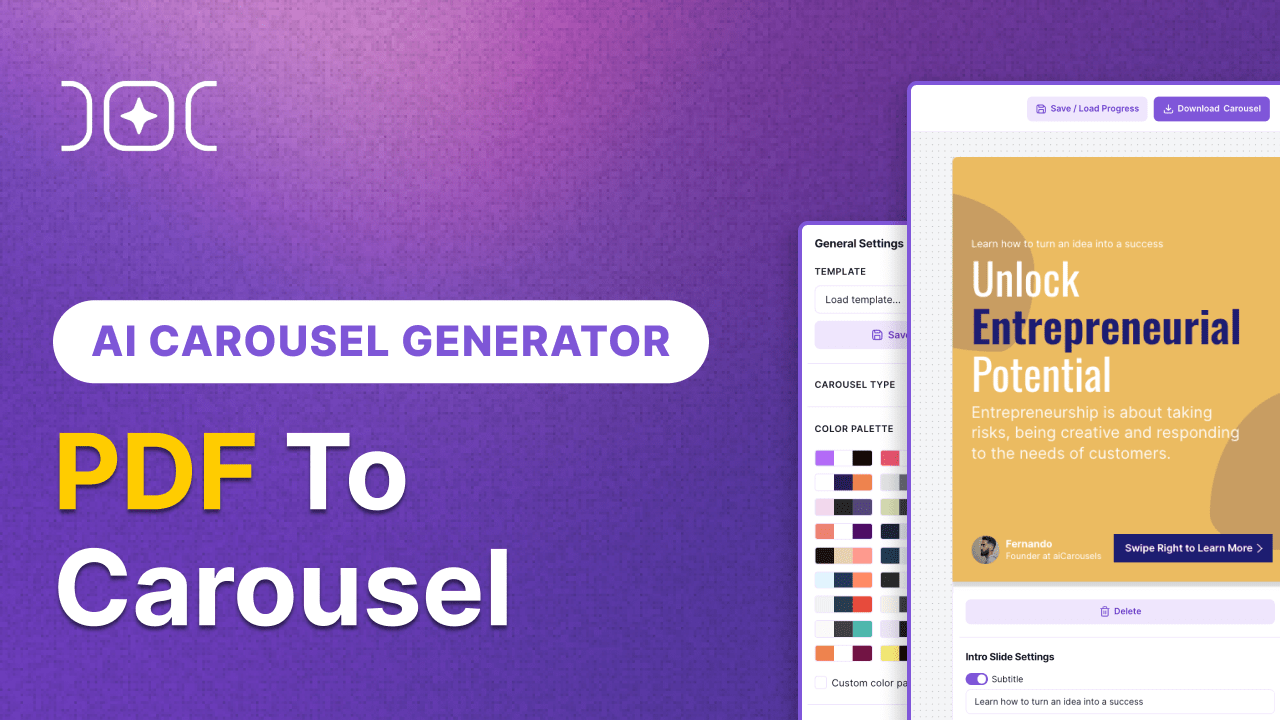
A social media carousel is a content format that allows users to showcase multiple images within a single post on platforms like Instagram and LinkedIn. Carousels enable brands and individuals to tell a more comprehensive story or share multiple pieces of related content without overwhelming their audience with multiple separate posts. They're an excellent tool for creating visually engaging content that encourages users to interact and explore the entire carousel by swiping or clicking through the slides.
To post a carousel on LinkedIn, follow these steps: a. Download the PDF containing multiple pages, with each page representing a slide in your carousel. Make sure the content and design are visually appealing and optimized for easy viewing on mobile devices. b. Open the LinkedIn app or go to the LinkedIn website and log in to your account. c. Click on the "Start a post" or "+" button to create a new post. d. Select the document icon to upload your PDF. e. Choose the PDF file you want to include as your carousel, and LinkedIn will automatically convert it into a carousel when posted. f. Add a caption to your post, and consider including relevant hashtags to improve visibility. g. Click on "Post" or "Publish" to share your carousel with your LinkedIn network.
a. Open the Instagram app on your smartphone and log in to your account. b. Tap the "+" icon at the bottom of the screen to create a new post. c. In the "New Post" screen, tap the "Library" (iOS) or "Gallery" (Android) option to choose images or videos from your device. d. Select the first piece of content you want to include in your carousel, then tap the "Select Multiple" icon (looks like stacked squares) to add more images or videos. e. Choose up to 20 images or videos to include in your carousel. f. Tap "Next" to edit and arrange the order of your carousel content as desired. g. Add a caption, relevant hashtags, and tag any accounts you want to mention. h. Tap "Share" to publish your carousel on your Instagram feed.
To upload a carousel to TikTok, follow these steps: a. Tap the "+" icon at the bottom of the screen to start creating content. b. In the content creation screen, tap the "Upload" button located in the bottom right corner. c. Select the photos you want to include in your carousel from your photo gallery and tap "Next." d. On the content editing page, you can add music and effects to enhance your carousel. e. Once you're satisfied with your carousel, add a caption and relevant hashtags. f. Tap "Share" to upload your carousel to TikTok and make it visible to your followers and the TikTok community.
To post a carousel on Threads, follow these steps: a. Open the Threads app on your smartphone and log in to your account. b. Tap the "+" button at the bottom of the screen to create a new post. c. Tap on the "Photos" or "Media" icon to select the images or videos you want to include in your carousel. d. Select multiple images or videos by holding down on the first image or tapping the "Select Multiple" option. e. Arrange the order of the selected media if necessary, and tap "Next." f. Add a caption to your post, and consider using relevant hashtags for better visibility. g. Tap "Post" to share your carousel on Threads.
Yes, you can use aiCarousels to create carousel ads for various platforms including Facebook, LinkedIn, Instagram, and other platforms that support carousel ad formats. When creating carousel ads, make sure to thoroughly review the ad specifications and guidelines provided by each platform to ensure your ads meet their requirements and achieve the best possible performance.
If your carousel download appears broken, missing elements, or not rendering correctly, it might be due to browser extensions interfering with the site. Some ad blockers, privacy extensions, or script blockers may alter how elements load, causing unexpected issues. Try the following steps to fix it: a. Disable any browser extensions that might affect site elements, such as ad blockers or script managers. b. Refresh the page and attempt the download again. c. Try using a different browser or an incognito/private browsing mode to see if the issue persists. d. Contact aiCarousels support if none of the above steps resolve the problem.
Use the Load Downloaded Carousel button on Drafts.
a. Click the button and choose the PDF, or ZIP you originally downloaded.
b. aiCarousels will instantly recreate the whole project—including colours, fonts, slides, and images—so you can continue editing right where you left off.
Tip: Import works only with carousels exported after May 2025.
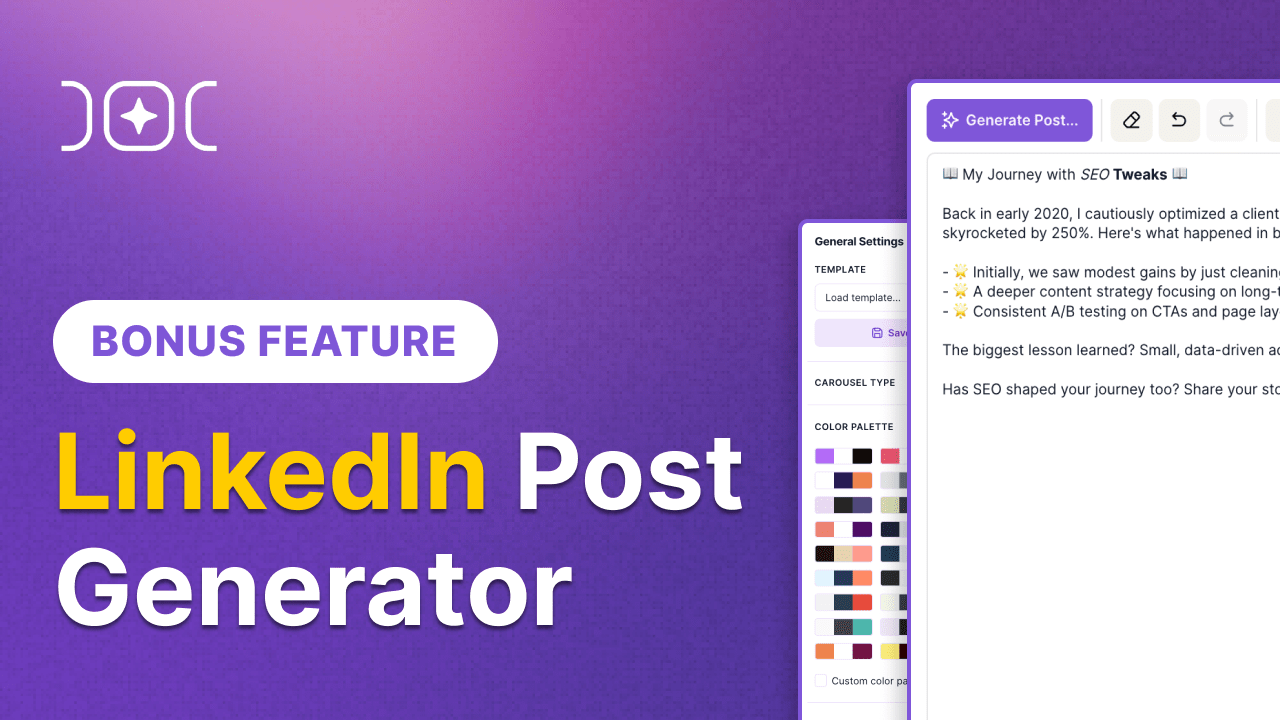
Click on the 'menu grid' icon, located at the top left corner of your screen to access the LinkedIn Post Generator. Know More ->
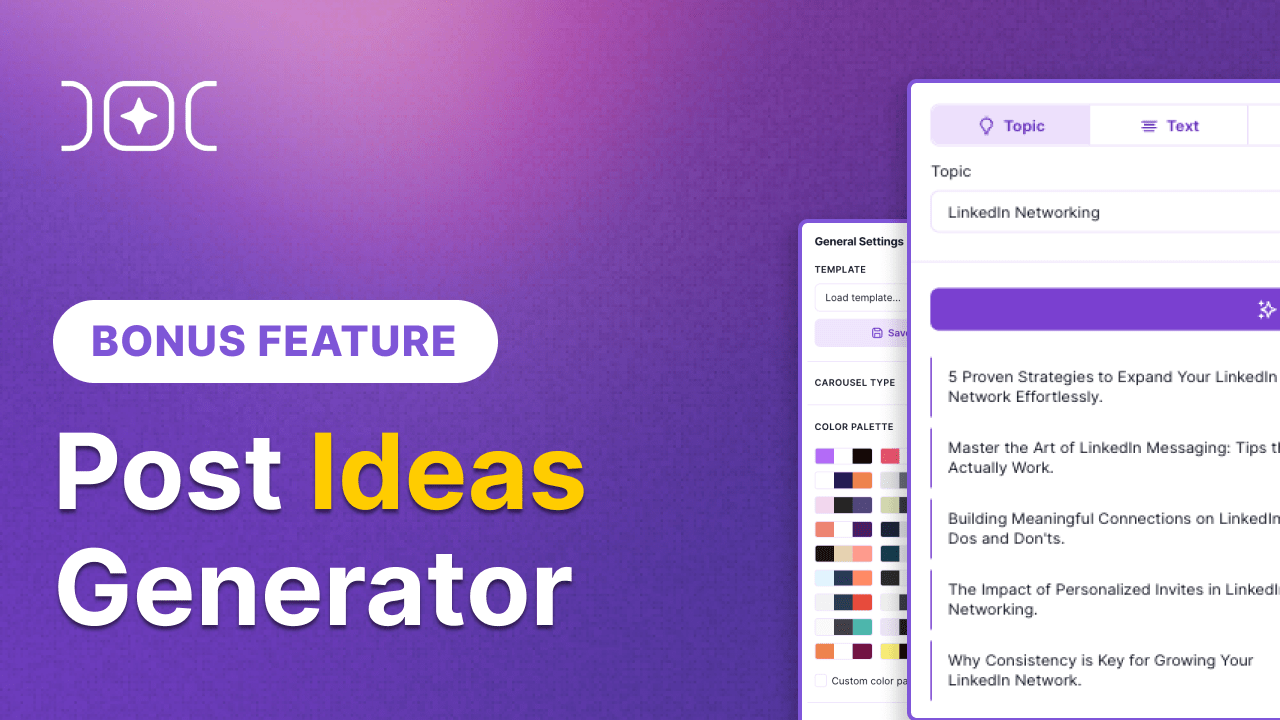
Click on the 'menu grid' icon, located at the top left corner of your screen to access the Post Ideas Generator. Know More ->
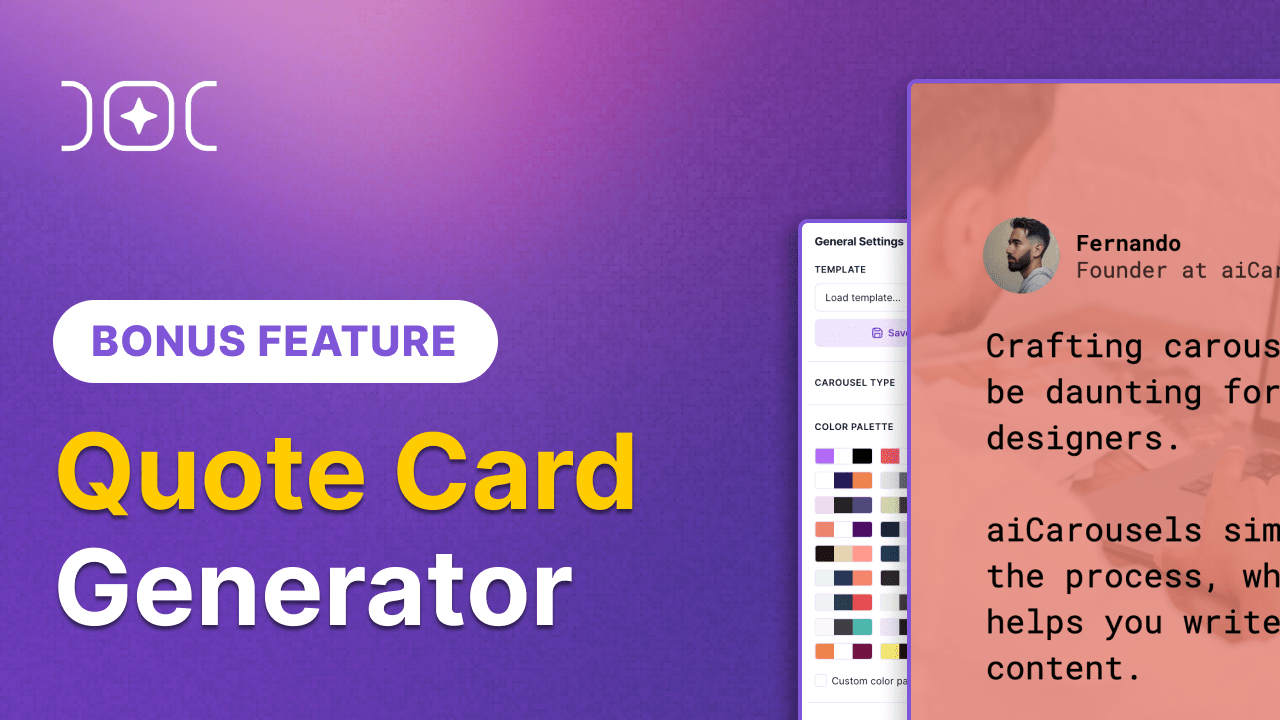
Click on the 'menu grid' icon, located at the top left corner of your screen to access the Quote Card Generator. Know More ->
Click on the 'menu grid' icon, located at the top left corner of your screen to access the Infographic Generator. Know More ->
Click on the 'menu grid' icon, located at the top left corner of your screen, or directly from the intro slide when choosing image mode. Learn more →